Products & stock
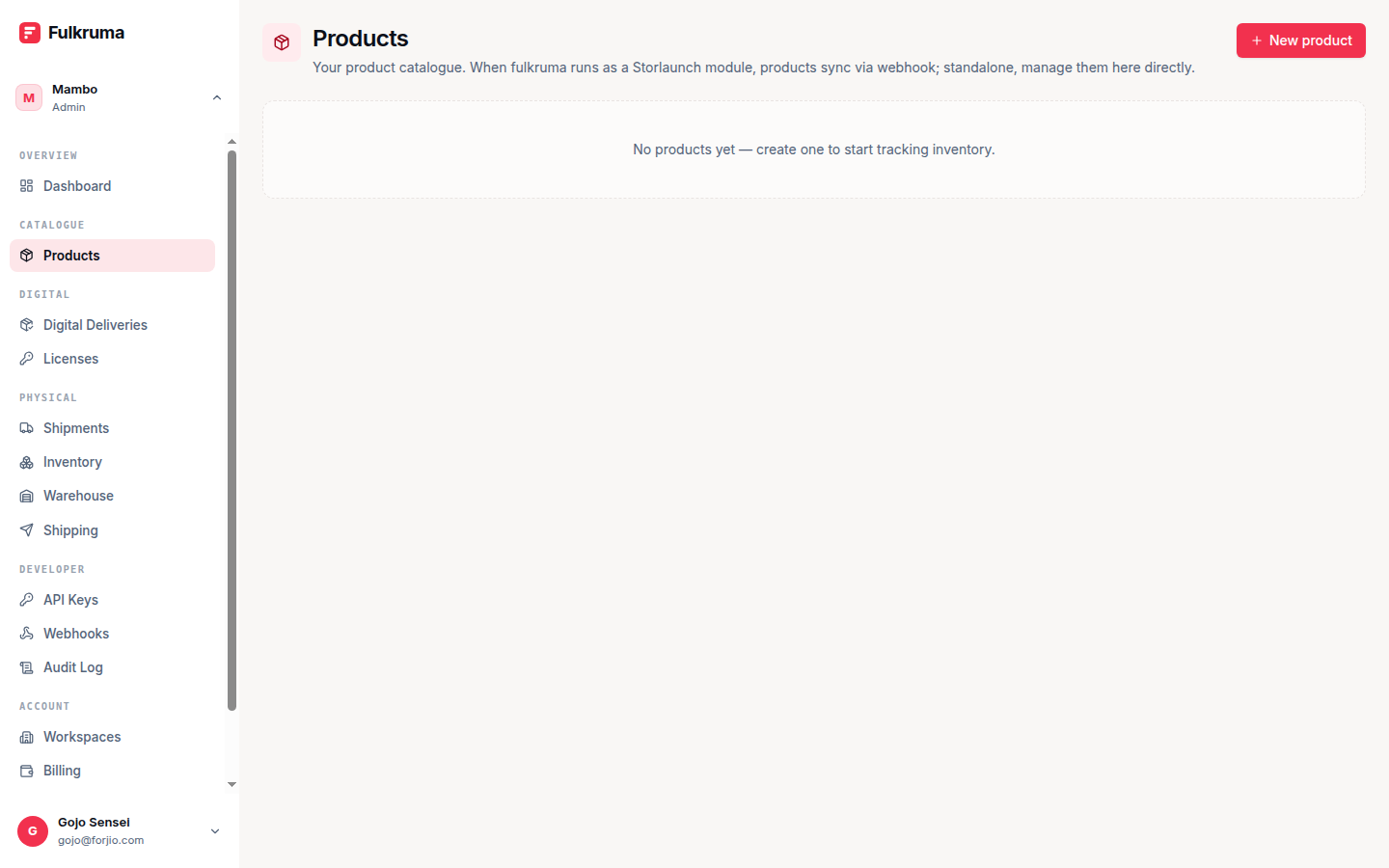
A product is something you sell — with one or more variants (sizes, colors, license tiers). Stock is the count of how many of each variant exist at each warehouse. This page covers managing both from the dashboard.
If you came from Storlaunch, your product catalog is mirrored into Fulkruma automatically. You can still edit fulfilment-specific fields (weight, dimensions, license settings) directly here.
Product types
Fulkruma supports three product types:
physical— ships in a box. Has weight and dimensions. Tracked in stock. Routed through Biteship to a courier when sold.digital— downloadable file. No stock, no shipping. Sale creates a delivery with a signed download URL.license— software license key. No stock, no shipping. Sale creates a license with an activation key.
Pick the type when creating the product. You can't switch types after creation — the database fields differ.
Creating a product
Navigate to Dashboard → Products and click Add product. Fill in:
| Field | Used for | Notes |
|---|---|---|
| Name | All types | Required. Customer-facing name. |
| SKU | All types | Optional. Your internal identifier. |
| Description | All types | Optional. Free text. |
| Type | All types | physical, digital, or license. Default physical. |
| Weight | physical |
Grams. Used for shipping rate quotes. |
| Length / Width / Height | physical |
Centimeters. Used for shipping rate quotes. |
| License enabled | license |
Whether sales auto-issue a license. |
| Max activations | license |
How many machines/instances a single license key authorizes. Default 1. |
Click Create. The product is created with a single default variant.
Variants
If you sell a t-shirt in three sizes, the product is "T-shirt" and the variants are "Small", "Medium", "Large." Each variant has:
- A name and optional SKU
- A price (in cents)
- A cost (in cents) — for margin reporting
- A low-stock threshold — trigger a notification when stock drops below this
- An optional weight override (if it differs from the parent product)
- An
isDefaultflag
Add variants from the product detail page → Add variant.
Products with a single variant are common — you don't have to model variants. We auto-create a default variant called "Default" for every new product.
Stock management
Stock is tracked per (variant, warehouse) pair. The same variant can have different counts in different warehouses.
Viewing current stock
The Stock page shows the levels for every variant at every warehouse:
| Variant | Warehouse | On hand | Reserved | Available |
|---|---|---|---|---|
| T-shirt / Medium | Jakarta | 50 | 3 | 47 |
| T-shirt / Medium | Surabaya | 12 | 0 | 12 |
- On hand — physical units present.
- Reserved — held by in-flight checkouts. Not available for new orders.
- Available — on hand minus reserved. This is what new orders draw from.
Adjusting stock
Click Adjust stock. Fill in:
| Field | Notes |
|---|---|
| Variant | The variant to adjust |
| Warehouse | Where the change is happening |
| Delta | Positive (e.g. +100) or negative (e.g. -3) |
| Reason | One of: initial, restock, sale, return, damage, transfer, adjustment |
| Note | Optional free text for the audit trail |
Click Save. The stock level updates immediately and a stock movement is recorded in the ledger.
The stock ledger
Every change to stock goes through the stock movements ledger. Navigate to Stock → Movements to see the full history. Each entry has:
- Timestamp
- Variant + warehouse
- Delta
- Reason
- Note
- Who made the change (user or API key)
The ledger is append-only. You can't edit or delete movements — if you made a mistake, record a compensating movement with reason adjustment and a note explaining the correction.
Reservations
When a customer is checking out, your application can call stock.reserve to hold the units against the running total. This prevents another concurrent customer from selling the same unit twice.
Reservations:
- Have a TTL (default 15 minutes; configurable per call).
- Convert to a
salemovement when checkout completes. - Auto-expire and release back if checkout abandons.
The dashboard's Stock → Reservations tab shows currently-held reservations — useful for debugging "why is my available count short of on-hand?"
Low-stock alerts
Set a lowStockThreshold per variant. When a stock adjustment takes a warehouse's level from at or above the threshold to below it, Fulkruma fires a fulkruma.stock.low.v1 webhook event you can wire to email, Slack, etc. It fires once per crossing — not again while the level stays low.
Leave the threshold empty (or 0) for no alert.
Archiving
Archive (don't delete) products and variants you no longer sell. Archived items:
- Don't appear in dropdowns for new shipments.
- Are hidden from the default product list (toggle "Show archived" to see them).
- Still appear on historical shipments and stock movements.
- Can be un-archived if you want them back.
License products
If you create a license product, the License enabled and Max activations fields control how Fulkruma issues license keys when the product is sold. See Concepts → License for the full activation/deactivation lifecycle.
Storlaunch integration
When Storlaunch is the merchant's storefront, products are created in Storlaunch and mirrored into Fulkruma via the partner webhook. Fulkruma stores them with the original externalRef so you can correlate.
You can still edit the fulfilment-specific fields (weight, dimensions, license settings) directly in Fulkruma — these don't round-trip back to Storlaunch.
Next
- Shipments — ship stock to a customer.
- Concepts → Stock — the data model.