Warehouses
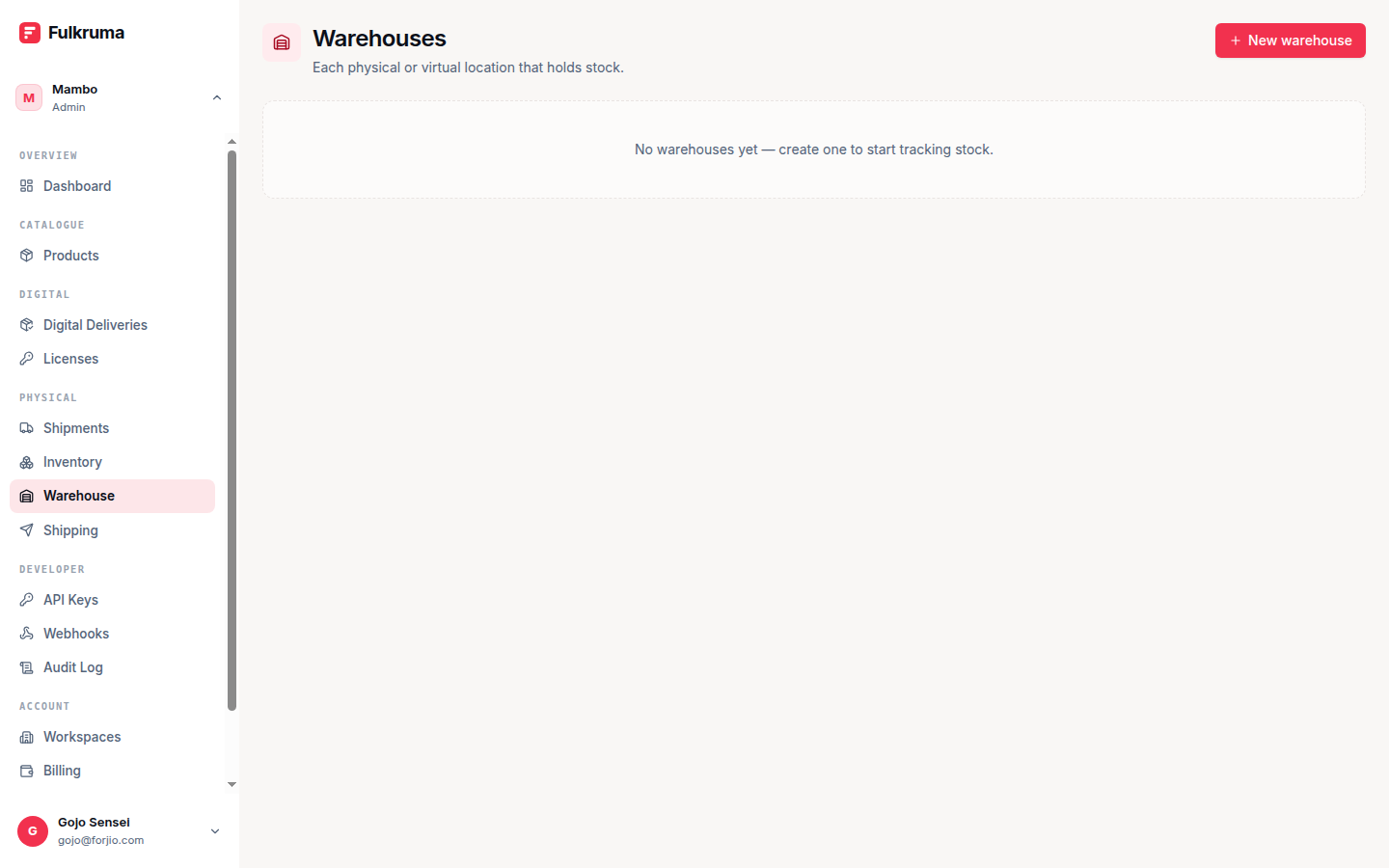
A warehouse is a physical location where you store stock. Every Fulkruma workspace has at least one. This page covers how to create, edit, and manage them from the dashboard.
If you need the API equivalent, see API reference.
When to add a warehouse
Add a warehouse for every distinct physical location where you hold stock and ship from. Common cases:
- Single warehouse — one location for everything. The most common setup for small merchants.
- Multi-warehouse — you have warehouses in different cities (e.g. Jakarta and Surabaya) and want to ship from whichever is closer to the customer.
- Drop-ship locations — if a supplier ships on your behalf from their own location, model it as a warehouse with their address.
- Returns warehouse — a separate location for handling returns can be useful for reporting, even if it's a desk in the corner of your main warehouse.
There's no hard limit on warehouse count.
Creating a warehouse
Navigate to Dashboard → Warehouses and click Add warehouse. Fill in:
| Field | Required | Notes |
|---|---|---|
| Name | Yes | Up to 120 characters. Shown in dropdowns when creating shipments. |
| Address | No | Street address. Used as the courier pickup location. |
| City | No | Used by Biteship to compute shipping rates. |
| Postal code | No | Used by Biteship to compute shipping rates. |
| Phone | No | Used as the courier's pickup contact. |
| Latitude / Longitude | No | Optional. Improves shipping rate accuracy. |
| Default | No | Whether new stock and shipments default to this warehouse. |
Click Create.
The first warehouse you create is automatically marked as default. You can't unmark it unless you mark another one default first.
The default warehouse
The default warehouse is the fallback for:
- New stock adjustments when no warehouse is specified.
- Shipments created without an explicit origin.
- Shipping rate quotes when you ask for "rates from my warehouse to this address."
You can have exactly one default warehouse. Toggling the default flag on a different warehouse moves the flag — you don't end up with two defaults.
Editing a warehouse
Click any warehouse in the list to open its detail page. From there:
- Edit — update name, address, contact info, lat/lng.
- Mark default — flip the default flag.
- Archive — remove it from the active list.
Archived warehouses are kept in the database (for historical shipment records) but hidden from dropdowns and lists. You can't archive a warehouse that's currently the default — mark another one default first.
Multi-warehouse strategies
If you operate from multiple locations, a few patterns work well:
Geographic split
Customers in Java island ship from Jakarta. Customers in Sumatra ship from Medan. The Fulkruma API doesn't pick a warehouse for you — your application decides at shipment creation time based on the destination city.
Stock is tracked per-(variant, warehouse) so you can answer "do I have enough in Medan?" before deciding.
Hub-and-spoke
One main warehouse holds most stock. Smaller satellite warehouses are restocked from the hub on a schedule. Track transfers between warehouses with stock.adjust movements of reason transfer (one negative on the source, one positive on the destination).
Sample warehouse
A "samples" warehouse for marketing kits, promo bundles, and dev hardware. Same model, just tagged by name. Useful for keeping non-sale inventory separate from your real saleable stock.
Latitude / longitude
If you provide lat/lng, Biteship uses it directly for rate calculation, which is more accurate than the city + postal lookup. Useful in places where postal codes cover large areas.
You can find the lat/lng of your warehouse by:
- Searching it on Google Maps and right-clicking the marker.
- Using your phone's GPS while physically at the warehouse.
Both fields are optional. If you skip them, Biteship falls back to the address fields.
Archiving
Archive (don't delete) a warehouse when:
- You've closed the physical location but want to keep historical shipment records intact.
- You created a warehouse for testing and no longer need it.
Archived warehouses:
- Don't appear in dropdowns for new shipments or stock adjustments.
- Don't count toward the dashboard counters.
- Still appear on historical shipment detail pages (so you know where each shipment originated).
- Can be un-archived from the detail page if you want them back.
Next
- Products & stock — once you have a warehouse, fill it with stock.
- Shipments — create your first shipment.
- Concepts — the data model behind warehouses.