Shipments
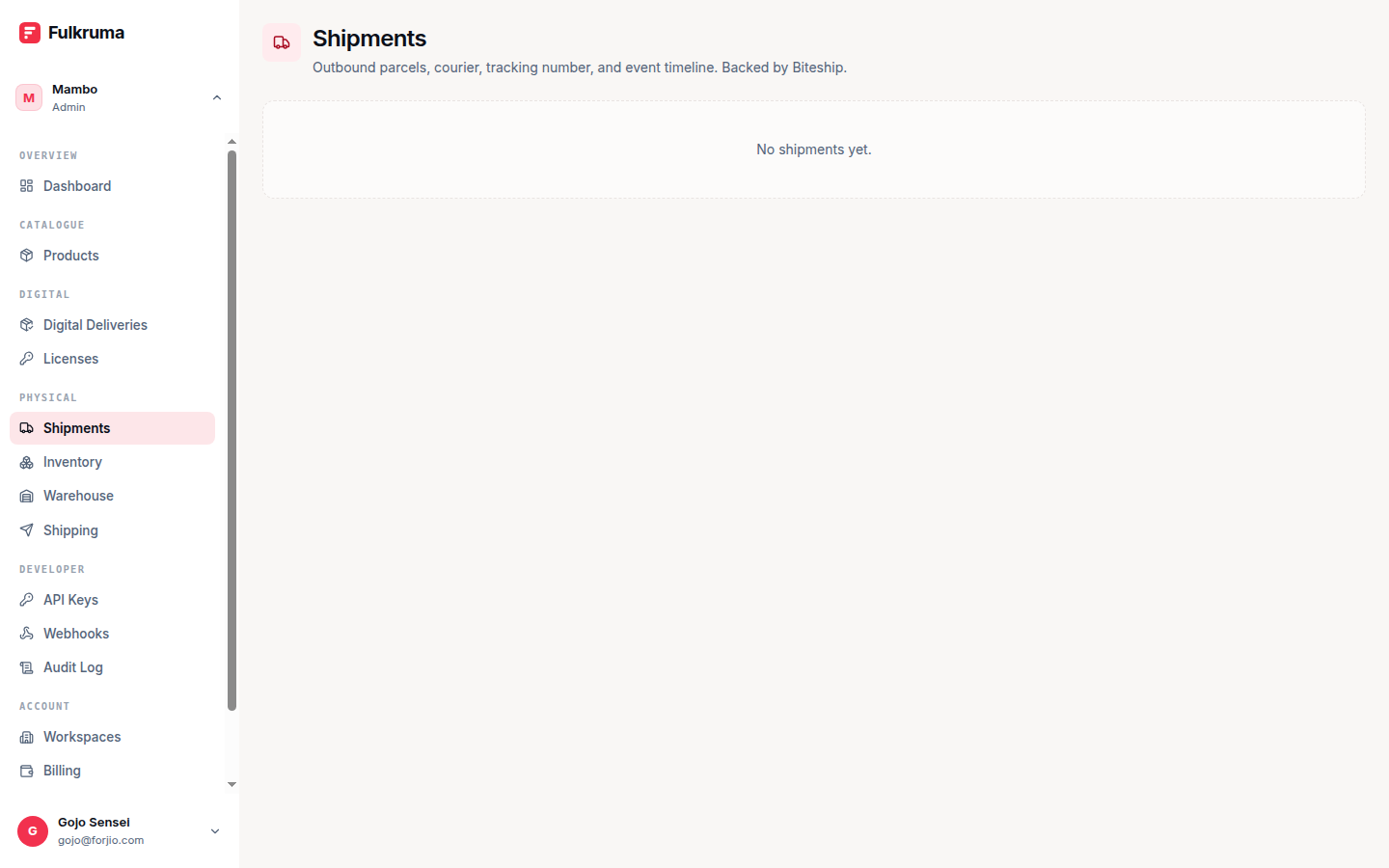
A shipment is a real-world delivery from one of your warehouses to a customer address. A delivery is the digital equivalent — a download URL or a license key. This page covers both, since the dashboard surfaces them side by side.
Lifecycle
A shipment goes through these states:
| State | Means | Next |
|---|---|---|
pending |
Created locally, not yet sent to a courier | confirmed or failed |
confirmed |
Booked with a courier; pickup awaited | picked_up |
picked_up |
Courier has collected the package | in_transit |
in_transit |
On its way to the destination | delivered or failed |
delivered |
Customer signed for / received it | (terminal) |
failed |
Courier was unable to deliver | returned |
returned |
Package came back to the origin | (terminal) |
Most state transitions come from the courier (Biteship's webhook). You can manually update status from the dashboard for offline corrections.
Creating a shipment
Navigate to Dashboard → Shipments and click New shipment. Fill in:
| Section | Fields |
|---|---|
| Origin | The warehouse the shipment ships from. Defaults to your default warehouse. |
| Destination | Customer address (existing address book entry or new one). |
| Items | One or more line items: product, variant, quantity, weight. |
| Courier | Pick from the available couriers and services. |
| Pricing | Price you paid for the label; optional insurance. |
Click Create.
If Biteship is configured under Settings → Integrations, Fulkruma books the order with Biteship and stores the courier's tracking ID. If not, the shipment is recorded locally with a placeholder ID for development.
Shipping rates
Before creating a shipment, you'll usually want to know what couriers and prices are available for a given route. Go to Shipping → Rates (or call POST /api/v1/shipping/rates):
curl -X POST https://fulkruma.com/api/v1/shipping/rates \
  -H "Authorization: ..." \
  -d '{
    "destination": {"city": "Jakarta", "postal": "12345"},
    "items": [{"weight": 500, "quantity": 1}],
    "insurance": false
  }'
The response is a list of (courier, service, price, eta) tuples sourced from Biteship. Pick one and pass courierCode + courierServiceCode to shipments.create.
You can also set a default origin under Shipping → Origin so you don't have to specify it on every rate request.
Shipment events
Every status change records a shipment event. The detail page shows the event timeline:
2026-05-12 10:42  Created     (you)
2026-05-12 10:43  Confirmed   (Biteship: order #BTS-12345)
2026-05-12 14:10  Picked up   (Biteship: courier #JNE-789)
2026-05-13 09:01  In transit  (Biteship: out for delivery)
2026-05-13 13:24  Delivered   (Biteship: signed by recipient)
Each event has:
- An
occurredAt(when the real-world event happened, per the courier) - A
recordedAt(when Fulkruma received the update)
Both are useful: occurredAt for accurate timelines; recordedAt for debugging webhook delivery delays.
Webhooks for shipment status
Subscribe a webhook endpoint to fulkruma.shipment.created.v1 and fulkruma.shipment.status_updated.v1 (plus fulkruma.shipment.pickup_confirmed.v1, fulkruma.shipment.cancelled.v1 and fulkruma.shipment.rebooked.v1 if you need them) so you can notify customers, update your CRM, or trigger downstream flows. A delivered, returned or failed parcel arrives as fulkruma.shipment.status_updated.v1 with that status — there is no separate delivered or failed event. Subscribe to fulkruma.shipment.* to get them all.
The full event catalog is in Webhooks; the dashboard's Webhooks page offers the same list.
Deliveries (digital fulfilment)
For digital and license products, you use deliveries instead of shipments. Navigate to Dashboard → Deliveries.
A delivery has:
- A reference to a
digitalorlicenseproduct - A customer
- Optional
maxDownloads(for digital files) - Optional
expiresAt
Create one via New delivery or by calling POST /api/v1/deliveries. Fulkruma:
- For
digitalproducts: generates a short-lived signed download URL that the customer can use. - For
licenseproducts: issues a license key and links it to the delivery.
The customer can be emailed the link/key by the consuming product (Storlaunch, your custom storefront) — Fulkruma owns the issuance, not the notification.
Licenses
License keys produced by deliveries are managed under Dashboard → Licenses. Each row shows the key, its product, the customer, max activations, current activations, and status.
From the detail page you can:
- View activations — which instances/machines have this license bound.
- Revoke — deactivate the license. Customers lose access on their next
licenses.validateping. - Extend — bump the expiration date.
The three public license endpoints (activate, deactivate, validate) authenticate by the license key itself — not your API key — so customer-facing software can call them without secrets. See Concepts → License for details.
Common workflows
Order → ship
- Customer pays via Storlaunch (or your storefront).
- Storlaunch (or your code) calls
POST /api/v1/shipmentswith the order details. - Fulkruma books Biteship and returns the shipment.
- You get
fulkruma.shipment.created.v1, thenfulkruma.shipment.status_updated.v1as the parcel moves, the last one withstatus: "delivered". - Show the tracking link to the customer.
Return
- Customer requests a return.
- You create a new shipment with origin = customer address, destination = your warehouse.
- When
fulkruma.shipment.status_updated.v1arrives withstatus: "delivered", run astock.adjustof reasonreturnto add the unit back to inventory.
License sale
- Customer buys a license product.
- Your code calls
POST /api/v1/deliverieswith the product and customer. - Fulkruma issues a license; the response includes the key.
- You email the key to the customer.
- The customer's software calls
POST /api/v1/licenses/activateon first launch andGET /api/v1/licenses/validateon every subsequent launch.
Next
- Concepts — the data model behind shipments, deliveries, and licenses.
- API reference — the full HTTP surface.
- Warehouses — configure where shipments originate from.